CRM
How to set up CRM Property Mapping
CRM Property Mapping decides which BotableX field lands in which HubSpot property. Nothing is mapped when you start, so nothing is written until you set this up.
Updated October 4, 2026. Applies to the BotableX Staff Portal. For tenant admins.
CRM Property Mapping decides which BotableX field lands in which HubSpot property. Nothing is mapped when you start, so nothing is written until you set this up.
This article shows how to add a mapping row, what the directions mean, and how to check your work before you save.
Before you start
- You need the Settings permission (
config.edit). - Connect your CRM first and press Refresh Schema on the CRM tab. You cannot map anything until BotableX has read your HubSpot properties.
- Nothing here is typed by hand. Every target is picked from your own HubSpot properties, on purpose, so a name can never be mistyped.
Where it is
- In the menu on the left, click Settings, then click the Property Mapping tab. It sits next to the CRM tab.
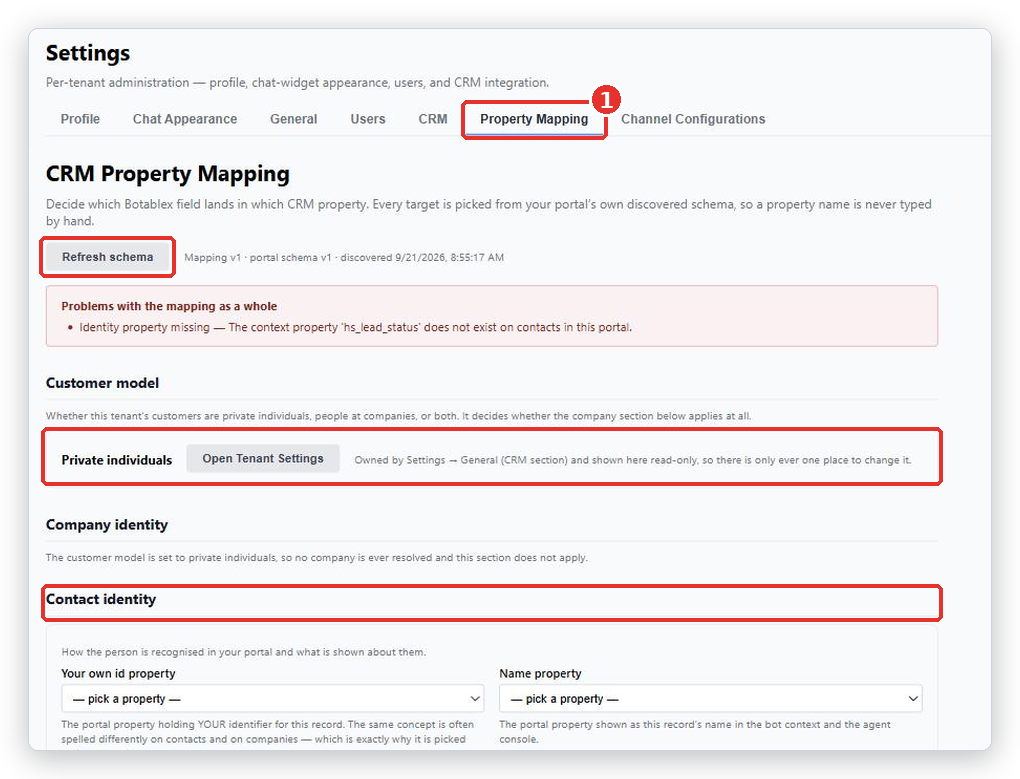
The page is one long form with several sections, top to bottom: Customer model, Company identity, Contact identity, Field mapping, Owners, Conversation record per channel, Conversation properties, and a What will be written preview at the end. A red box at the top called Problems with the mapping as a whole lists anything that stops you saving.
So how do you add your first mapping?
- Scroll to Field mapping and click + Add field. A New field mapping row opens.
- In Botablex field, pick what you want to send, for example Customer email.
- In CRM object, pick Contact, Company or Ticket. Only the objects that make sense for that field are offered.
- In CRM property, pick the HubSpot property it should land in, for example Email (email).
- In Direction, choose which way the information travels.
- Click Apply. The row joins the table.
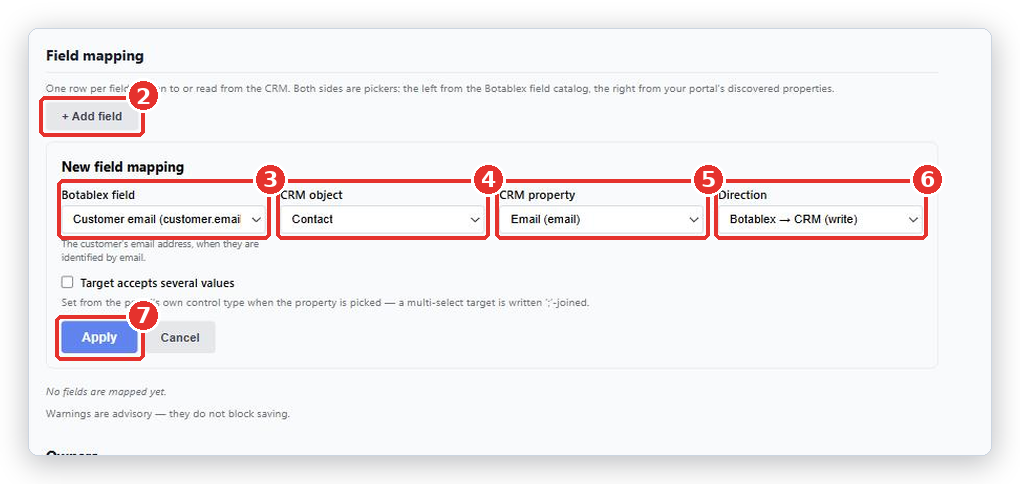
- Repeat for each field you want, then click Save mapping at the bottom of the page.
What Direction means
| Direction | What happens |
|---|---|
| Botablex → CRM (write) | BotableX writes this into HubSpot. Most conversation fields work this way. |
| CRM → Botablex (read) | BotableX reads this out of HubSpot to help the bot. Nothing is written back. |
| Both ways | Read and written. |
Some fields only offer one direction, because only one makes sense. A conversation summary can only be written; it does not exist in HubSpot until BotableX puts it there.
The fields you can map
The left-hand side is a fixed list. You cannot invent a BotableX field.
| Group | Fields |
|---|---|
| About the conversation | Conversation category, Conversation summary, Channel, How it was handled, Priority, Lifecycle state, Opened at, Closed at. All of these write to a Ticket. |
| About the customer | Customer name, Customer email, Customer phone, Customer external id, Company id. These work with a Contact, and can go both ways. |
| About who handled it | Handled by, Agent ids, Owning agent, Bot was involved. These write to a Ticket. |
A good starting set
- Customer email → your HubSpot contact email property, Both ways
- Customer name → the contact name property, Both ways
- Conversation summary → a ticket property, write
- Conversation category → a ticket property, write
- Channel → a ticket property, write
Dropdown fields and value maps
If the HubSpot property you picked is a dropdown, a Value map appears. Use it to say which of your values means which of theirs. For example your urgent might be their High.
If the property accepts several values at once, tick Target accepts several values. BotableX usually works this out for you from the property itself.
Parking a row instead of deleting it
Each saved row has an Active tick box. Clear it to stop writing that field while keeping the setup. Deleting the row throws the setup away. Nothing already written to HubSpot changes either way.
Checking before you save
BotableX checks your mapping as you edit. Red problems, listed under Problems with the mapping as a whole, stop you saving. Amber warnings are advice only; the page says Warnings are advisory - they do not block saving.
Important. If the server refuses your mapping, nothing at all is saved. The mapping you had before stays exactly as it was. Fix the problems it marks and save again.
At the bottom of the page is What will be written, with a Run preview button. It is built by the same code that does the real writing, so it shows the actual result, not an example. Type a sample value for a field and run it before you go live.
When HubSpot changes underneath you
If someone edits or deletes a property in HubSpot, a problem appears at the top of the page. Until you fix it, the affected rows write nothing. Press Refresh schema, then repoint the broken rows.
Common problems
| Problem | What to do |
|---|---|
| This portal’s schema has not been discovered yet | Open the CRM tab, press Refresh Schema, then come back. |
| Identity property missing - The context property ‘hs_lead_status’ does not exist on contacts in this portal. | A default context property is not in your HubSpot. Untick it under CRM Context Fields on the CRM tab, or pick a different one under Contact identity. |
| Pick a Botablex field and a CRM property before applying the row. | The row is half finished. Fill both, then click Apply. |
| No properties were discovered for this object. | Pick a CRM object first, or press Refresh schema if the list is empty for every object. |
| Target is not writable | That HubSpot property is calculated or read-only. Pick a different one, or make a custom property in HubSpot. |
| Value map required | The HubSpot property is a dropdown. Say which of your values means which of theirs. |
| Two rows write the same property | Two mappings point at one HubSpot property. Remove or park one. |
| Nothing was saved | The whole mapping was refused, so your previous mapping is untouched. Fix the red problems and save again. |
| Nothing appears in HubSpot even though the mapping is fine | Check Enable CRM export on session close is ticked on the CRM tab, and that the conversation actually closed. |
Tip from the BotableX team. Map five fields, save, close one test conversation, and look at the ticket in HubSpot. Then add more. A mapping built row by row against real tickets is right; a mapping built in one sitting from memory is not.