Learning and behavior
How to approve or discard what the Bot learned
When the bot works something out on its own, it does not start using it. It waits for you.
Updated October 4, 2026. Applies to the BotableX Staff Portal. For tenant admins.
When the bot works something out on its own, it does not start using it. It waits for you.
This article shows where those suggestions appear, how to read them, and how to approve or discard them.
Before you start
- You need the Bot’s Knowledge permission (
memory.manage). - Learning must be switched on for your account, or there will never be anything to review. It is off by default; see the Learning article.
- Nothing here changes the bot until you press a button. A suggestion sitting unreviewed does nothing at all.
Why there is a gate
The bot learns from what your team does: guidance they give it, replies they take over and write themselves, email replies they rewrite, and feedback from customers. Some of what it picks up is useful. Some of it is a one-off that should never become a rule.
So the bot deliberately ignores everything it learns until a person approves it. There is no automatic promotion.
So how do you review a suggestion?
- In the menu on the left, open Bot Management and click Bot’s Knowledge.
- In Bot, pick the Bot.
- Click the Agent Core tab. This is where the bot’s own suggestions land.
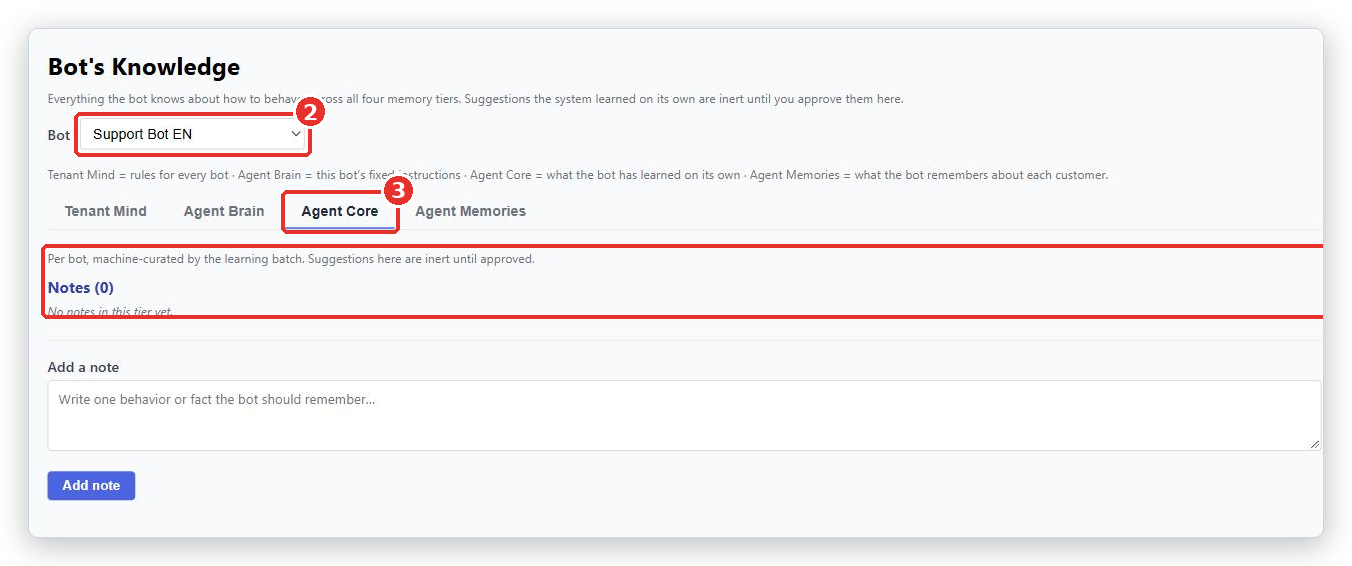
- Look for Suggestions awaiting your review. If the tab only shows Notes (0), there is nothing to review yet.
- Read each suggestion. Under it, a line tells you where it will go if you approve it.
- Click Approve to make it real, or Discard to remove it.
Also check the Tenant Mind tab. Suggestions that should apply to every Bot appear there instead. You still need a Bot selected to approve them.
Where a suggestion goes
The line under each suggestion tells you exactly where Approve will put it.
| If it says | Approving will |
|---|---|
| Approving adds this to the bot’s Limitations (Agent Brain). | Add a thing this Bot must never do. |
| Approving adds this to the bot’s Methods (Agent Brain). | Add a way this Bot should handle a situation. |
| Approving adds this to the tenant’s Escalation rules (Tenant Mind). | Change when conversations go to a person, for every Bot. |
| Approving folds this into the tenant’s Brand voice (Tenant Mind). | Change how every Bot sounds. |
| Approving files this under the tenant’s Notes (Tenant Mind). | Add a general note for every Bot. |
Read that line before you press Approve. The last three change every Bot in your account, not just this one.
How to decide
- Approve it if it would be right for the next hundred customers, not just the one it came from.
- Discard it if it repeats something you already wrote by hand.
- Discard it if it is about one specific customer or one specific order.
- Discard it if it is too vague to act on.
- If it is nearly right, discard it and write your own note by hand instead. That is quicker than trying to make the bot suggest a better version.
Conflicts with the Brain
The Agent Core tab may show Conflicts with the Brain. These are suggestions that contradict something you wrote by hand in the Agent Brain. The screen shows Core wants next to Brain has so you can compare them.
Either update the Agent Brain to the new wording, or discard the suggestion. Leaving a conflict unresolved means the suggestion never takes effect.
What happens next
An approved suggestion becomes an ordinary note in the Agent Brain or the Tenant Mind, and the Bot starts using it on the next conversation. You can edit or delete it later like any other note.
Common problems
| Problem | What to do |
|---|---|
| There are no suggestions at all | Either Learning is switched off for your account, or nothing has been learned yet. See the Learning article, and check the Learning activity list. |
| Pick a bot above to approve or discard tenant-wide suggestions. | Choose a Bot in the selector at the top, even for Tenant Mind suggestions. |
| The same suggestion keeps coming back | Something in your team’s daily work keeps producing it. Write the rule yourself in the Agent Brain, and it will stop being suggested as new. |
| I approved something by mistake | Go to the level it landed in, find the note, and delete it. |
| The Approve and Discard buttons are missing | You do not have the memory.manage permission. |
Tip from the BotableX team. Review suggestions once a week, not once a day. A week of conversations shows you which suggestions keep coming back, and those are the ones worth approving.