Learning and behavior
What the Bot knows about how to behave
Bot's Knowledge is where you see and change everything the bot knows about how to behave. It has four levels, and they do different jobs.
Updated October 4, 2026. Applies to the BotableX Staff Portal. For tenant admins.
Bot’s Knowledge is where you see and change everything the bot knows about how to behave. It has four levels, and they do different jobs.
This article explains the four levels and how to add or remove a rule. Knowledge Banks hold facts; this screen holds behavior.
Before you start
- You need the Bot’s Knowledge permission (
memory.manage). Only account administrators have it. - If you can see the page but everything is read-only, you do not have that permission. Ask your account administrator.
- You need at least one Agent. Three of the four levels belong to a Bot, so the page asks you to pick one.
The four levels
| Level | What it holds |
|---|---|
| Tenant Mind | Rules for every Bot in your account. Shared. Not per Bot. |
| Agent Brain | This Bot’s fixed instructions, written by you. Permanent. The Bot reads all of it on every message. |
| Agent Core | What this Bot has learned on its own. Suggestions here do nothing until you approve them. |
| Agent Memories | What the Bot remembers about each customer. One row per customer it has spoken with. Read only. |
A short way to remember it: Tenant Mind is house rules, Agent Brain is this bot’s job description, Agent Core is what it picked up along the way, and Agent Memories is what it remembers about individual people.
So how do you add a rule?
- In the menu on the left, open Bot Management and click Bot’s Knowledge. In Bot, pick the Bot you mean.
- Pick the level. Use Tenant Mind for something that applies to every Bot, or Agent Core for one Bot.
- Scroll to Notes and find the Add a note box.
- Write one behavior or fact the Bot should remember. Keep it to one idea and under 2000 characters.
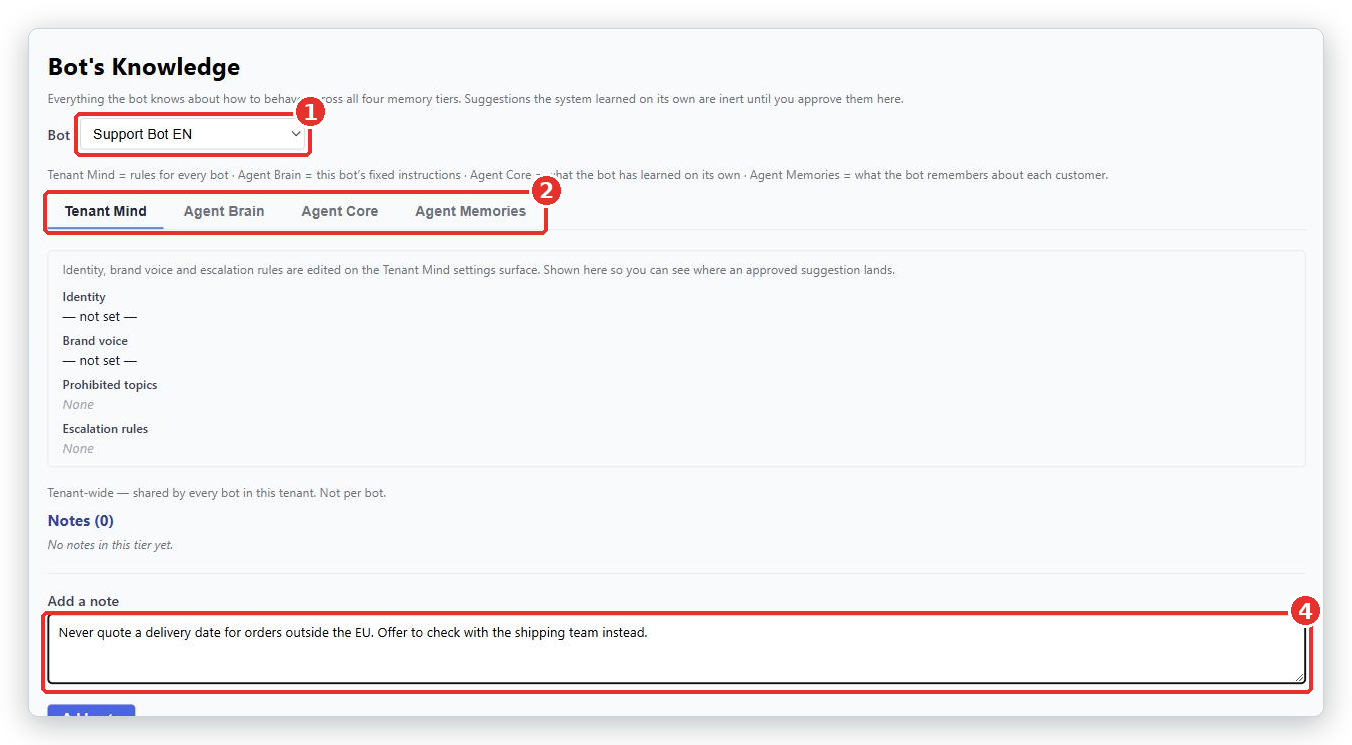
- Click Add note. The note appears under Notes with Edit and Delete next to it and a HIGH priority badge.
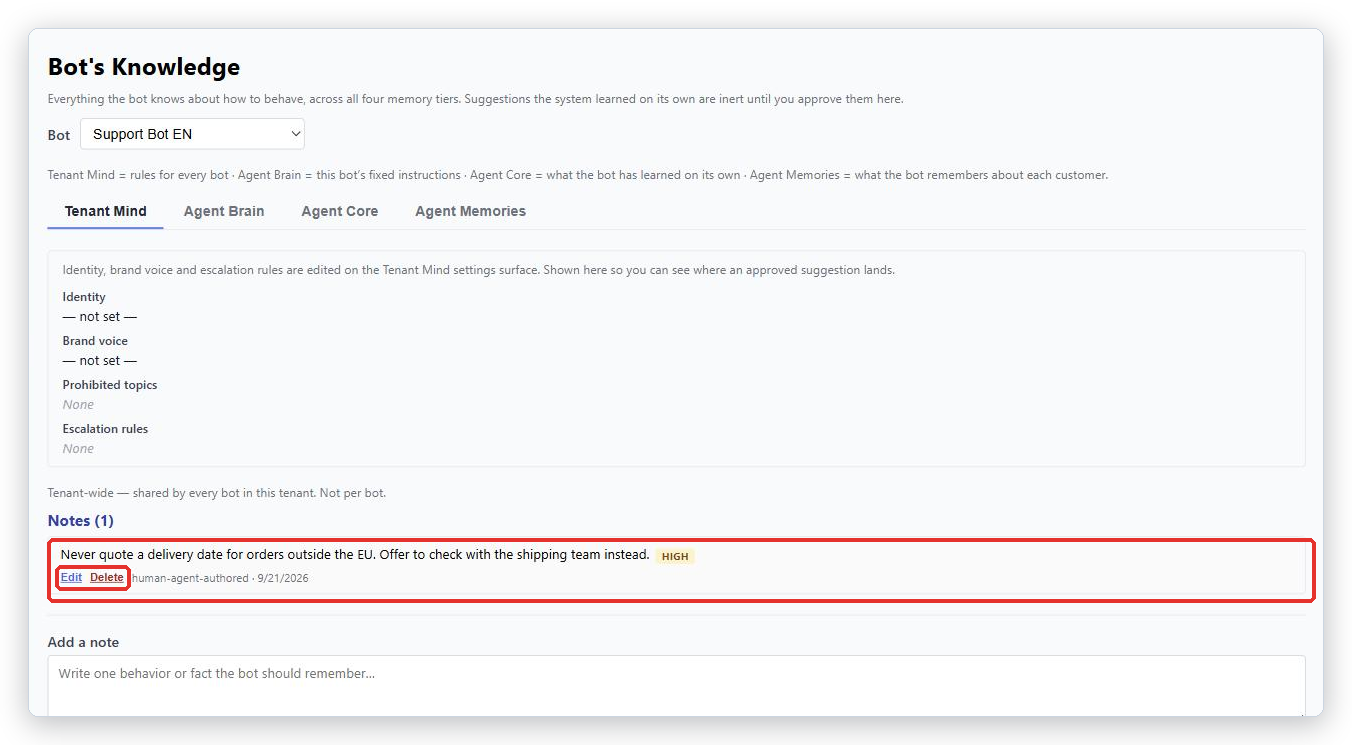
Good notes are short and specific. Never quote a delivery date for orders outside the EU works. Be helpful does nothing.
Editing and deleting
Each note has Edit and Delete. Deleting warns you that the Bot will stop using the note immediately, and that it cannot be undone.
Editing the Agent Brain
The Agent Brain tab is a whole document, not a list. It has Agent instruction, Limitations, Methods and Menus, the same things you filled in when you made the Agent. Type a rule and press Enter, or click Add, to add one; click the × on a rule to remove it. Click Save Brain when you are done.
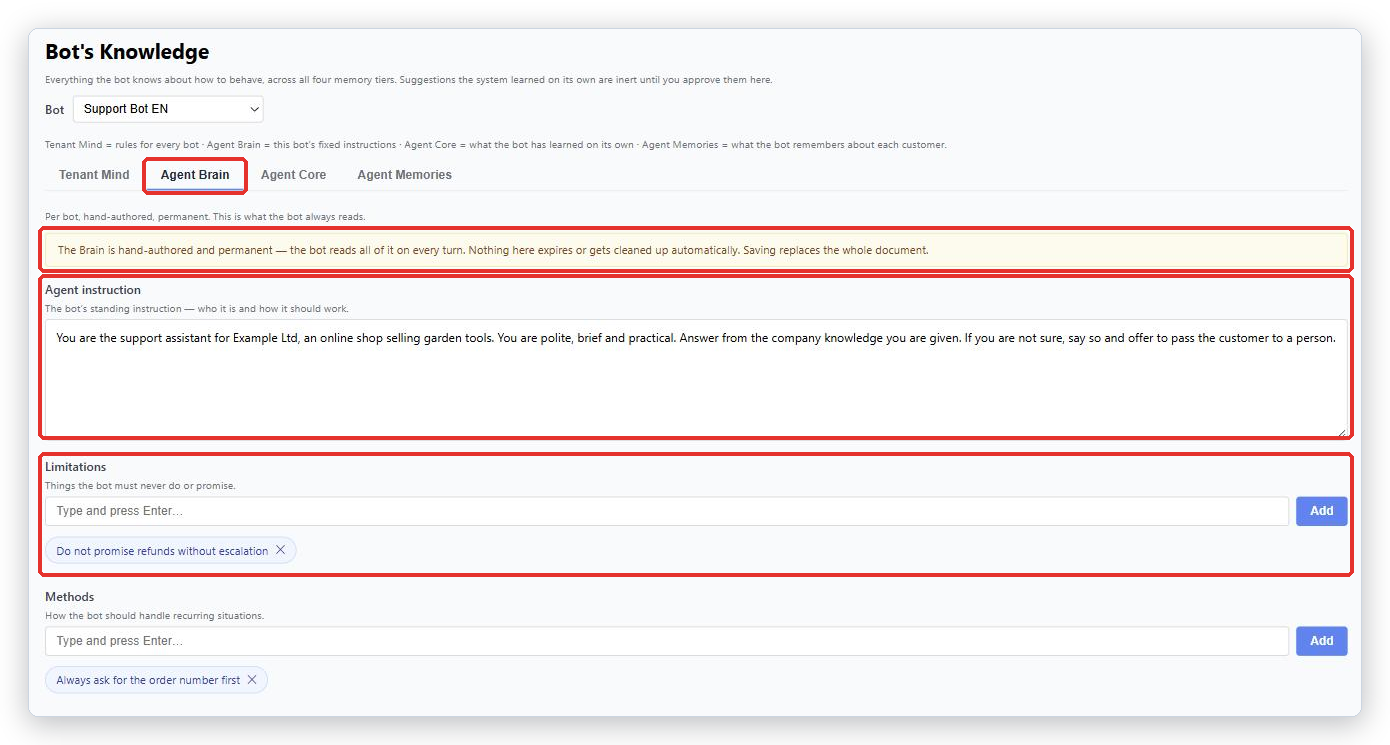
Important. The Agent Brain is permanent and the Bot reads all of it on every single message. Nothing here expires or is cleaned up. Save Brain replaces the whole document, so do not paste over it without reading what was there.
Agent Memories, and customer privacy
This tab lists the customers the Bot has spoken with, most recent first. Each row shows whether the customer was identified, when the last message was, and how many notes are held.
These are customer data. Identifiers are hidden on screen on purpose. Treat what you see here the way you treat any other customer record.
Old memories are cleaned up on their own. Anonymous customers are removed after a while, and notes on identified customers are pruned after longer. You do not need to manage this.
Common problems
| Problem | What to do |
|---|---|
| You can view the bot’s knowledge but not change it | You do not have the memory.manage permission. Ask your account administrator. |
| Pick a bot above to view this tier - it is stored per bot. | Choose a Bot in the selector at the top. Only Tenant Mind works without one. |
| This tenant has no bots yet. | Create an Agent first. Tenant Mind still applies to every Bot once you have one. |
| Identity, Brand voice, Prohibited topics and Escalation rules say not set or None | Those four are edited on the Global Mind page, not here. They are shown here so you can see where an approved suggestion lands. |
| I clicked Add note and nothing happened | The box was empty, or the page was still loading. Type the note first, then click. |
| The Bot ignores a note I added | Check you added it to the right Bot and the right level, and that it is one clear instruction rather than a paragraph. |
| Some notes have a demoted badge | Customers gave poor feedback on conversations where that note was used, so it now carries less weight. Rewrite it or delete it. |
Tip from the BotableX team. Put a rule in Tenant Mind only if you would be happy for a Bot you create next year to follow it too. Everything else belongs on the one Bot it is about.