Agent Console
How to claim a conversation from the Live Queue
The Live Queue is the list of conversations that need a person and have no owner yet. The bot puts a conversation there when it cannot help, when the customer asks for a human, or when no bot is attached to the...
Updated October 4, 2026. Applies to the BotableX Agent Console. For support agents.
The Live Queue is the list of conversations that need a person and have no owner yet. The bot puts a conversation there when it cannot help, when the customer asks for a human, or when no bot is attached to the Channel at all.
This article shows how to read the queue and how to claim a conversation so it becomes yours.
Before you start
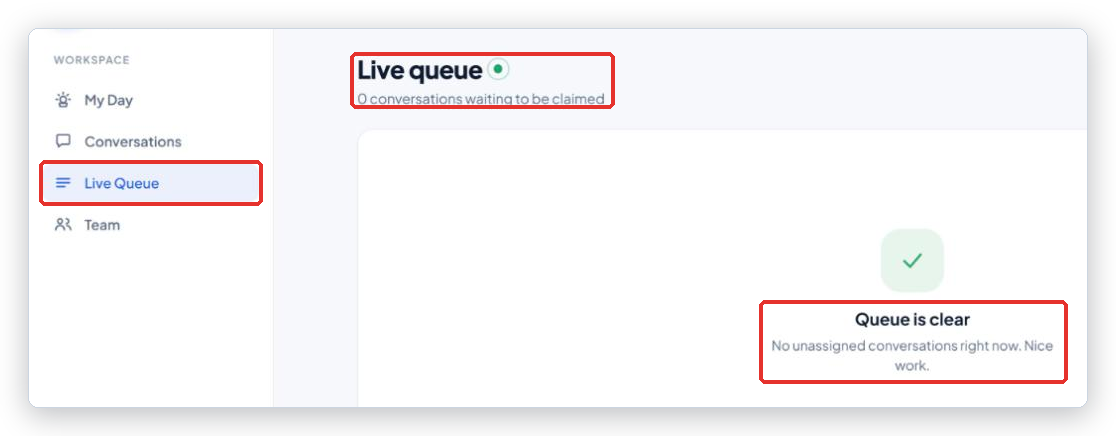
- Click Live Queue in the menu rail.
- Claiming makes you the owner. The conversation then shows Owner: You in its details, and teammates see it is taken.
- There is no way to pass a conversation to a teammate from the console. Claim only what you will handle.
Reading the queue
The page is called Live queue and the line under the title says how many conversations are waiting to be claimed. When the list is empty it says Queue is clear, with No unassigned conversations right now. Nice work.
Each row shows:
- Customer: the name, or Unidentified client, and under it the reason the bot gave for handing over. Hover over the row to read a long reason in full.
- Channel: web chat, email or WhatsApp.
- Wait time: how long the customer has been waiting, ticking live, for example
3m 12s. - Priority: Urgent, Normal or Low.
The list refreshes by itself every few seconds. Conversations that a teammate claims disappear from your view.
So how do you claim a conversation?
- Find the row you want to take. Start with Urgent, then the longest Wait time.
- Click Claim at the end of the row. The button reads Claiming… for a moment.
- The console opens the conversation for you at once. You are the owner. Click Take over if you want to answer the customer yourself, or advise the bot in the Bot consultation panel.
What happens next
The conversation leaves the queue for everyone. In your Inbox it is in the Bot needs help or You took over folder, depending on what you do next. On My Day, Assigned to me goes up by one, and the row appears under My open conversations.
Common problems
| Problem | What to do |
|---|---|
| Claim failed - try again | A teammate claimed it a second before you, or the connection dropped. The row will disappear or the retry will work. |
| Couldn’t load the queue - retrying. | The console cannot reach the server. It keeps trying. Check the top bar says Live. |
| The reason column just says Reason | The bot gave no reason. Open the conversation and read the last messages. |
| I claimed it, but the badge says Assigned to another agent | Two people claimed at the same moment and the other one won. Go back to the queue. |
| The same conversation comes back to the queue | It was released or closed, and the customer wrote again. Claim it again. |
Tip from the BotableX team. Keep the Live Queue open in a second browser tab during busy hours. It refreshes on its own, so a new row shows up without you clicking anything.