Agent Console
Your inbox: folders, conversation states and badges
The Inbox in the Agent Console lists every live conversation on every Channel: web chat, email and WhatsApp in one place. Each conversation carries a state that tells you who is handling it right now, the bot or a...
Updated October 4, 2026. Applies to the BotableX Agent Console. For support agents.
The Inbox in the Agent Console lists every live conversation on every Channel: web chat, email and WhatsApp in one place. Each conversation carries a state that tells you who is handling it right now, the bot or a person.
This article explains the folders, the four states, and the small badges on a row, so you can tell at a glance where you are needed.
Before you start
- Sign in to the Agent Console and click Conversations in the menu rail. See “How to sign in to the Agent Console and find your way around”.
- A conversation appears in the inbox only after the customer has written at least one message. A chat window that was opened but never typed in is not shown.
- Closed conversations stay in the inbox for 7 days, then drop off the list.
The folders
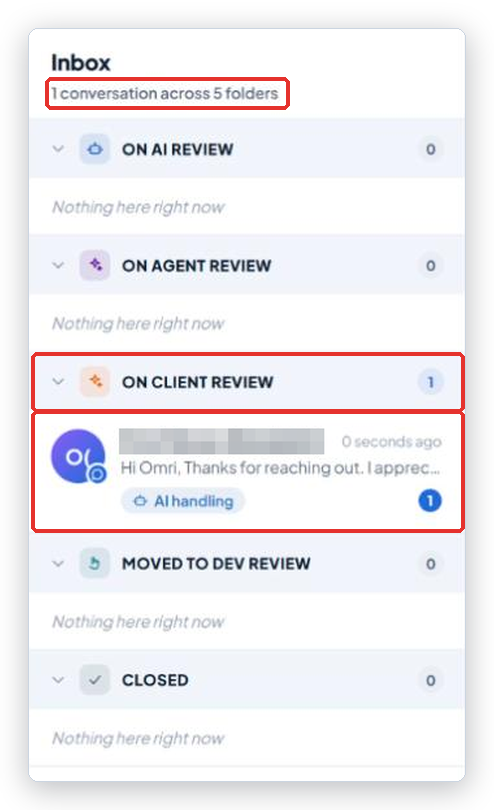
Under the Inbox heading a line says how many conversations you have and how many folders they sit in, for example 12 conversations across 4 folders. Each folder is a heading with a count. Click the heading to open or close the folder. An empty folder says Nothing here right now.
The folders are the Conversation states your organization set up in the Staff Portal. Out of the box, they are these four:
- Bot needs help: the bot got stuck and is asking a person for advice. These need you first.
- AI handling: the bot is answering on its own. Nothing to do unless you want to step in.
- You took over: a person is answering. The bot stays quiet.
- Closed: finished conversations from the last 7 days.
If your organization made its own states (for example “Billing” or “Returns”), those appear as folders instead, in the order your administrator chose. A folder called Uncategorized appears when a conversation has no state yet.
How the list is sorted
You cannot change the order. Conversations that are about to miss their reply deadline come first, then the ones with the most recent message. Inside a folder, the top row is the one to look at first.
What a row shows
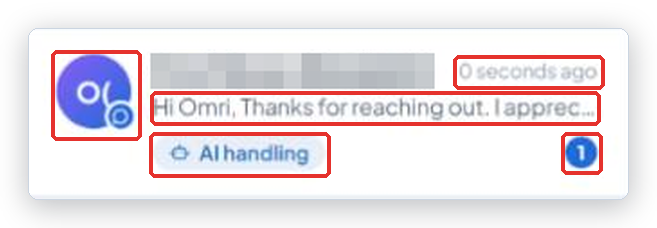
- The customer’s name. Email conversations show the subject line instead. Web chat visitors who never gave a name show as Anonymous followed by the start of their first message, and the line Unidentified client.
- A small dot on the avatar shows the Channel the conversation came in on.
- How long ago the last message was, and the first line of it.
- A state badge: AI handling, Bot needs help, You took over or Closed.
- A number bubble for messages you have not read yet. It counts up while you are looking at another conversation.
Two more badges appear when something needs a person:
- Urgent or Due soon: the reply deadline for this conversation is close or has passed. Conversations without one of these words are on track.
- Reply waiting 12m or Needs you 12m: the bot drafted an email reply that is waiting for your review. Reply waiting means it will send itself when the timer runs out. Needs you means nothing will send it until a person acts. See “How to review an email reply the bot drafted”.
The review queue at the top
When email replies are waiting for review, a block called Awaiting your review is pinned above all the folders. It cannot be collapsed, and the oldest draft is at the top. The line under it says why: The customer has not been answered until one of these is sent.
Opening a conversation
Click a row to open it in the middle of the screen. The web address changes to include the conversation, so you can copy the link and send it to a teammate. Before you pick one, the middle panel says Select a conversation.
Common problems
| Problem | What to do |
|---|---|
| A conversation I expect is not in the inbox | The customer has not sent a message yet, or the conversation closed more than 7 days ago. Also check the Live Queue: a conversation waiting to be claimed may sit there. |
| Every conversation is in Uncategorized | Your organization’s Conversation states are set up but the bot has not sorted these conversations yet. They still work; open them as usual. |
| That conversation couldn’t be opened - it may have been removed. | You followed a link to a conversation that no longer exists. Go back to Conversations and pick it from the list. |
| The counts on the folders do not add up to the number in the top line | Closed conversations always go to the Closed folder, whatever state they had before. That is expected. |
Tip from the BotableX team. Work the inbox top down: Awaiting your review first, then Bot needs help, then anything marked Urgent. Everything else is being handled by the bot.