Agent Console
How to take over a conversation and hand it back to the bot
In BotableX the bot talks to the customer first. When a person should take the conversation, you Take over: the bot goes quiet and you write to the customer yourself. When you are done, you Release to bot or close...
Updated October 4, 2026. Applies to the BotableX Agent Console. For support agents.
In BotableX the bot talks to the customer first. When a person should take the conversation, you Take over: the bot goes quiet and you write to the customer yourself. When you are done, you Release to bot or close the conversation.
This article shows the three buttons, how to write to the customer, how to send a file, and how to close a conversation.
Before you start
- Open the conversation from Conversations or from My Day.
- Check the top bar says Live. If it says Reconnecting… or Offline, your messages will not go out until it says Live again.
- A conversation that shows the badge Assigned to another agent belongs to a teammate. You can read it, but the buttons are hidden and only that teammate can act.
Important. Everything you type in the Customer chat box goes straight to the real customer, on the Channel they wrote from: their chat window, their WhatsApp or their email. There is no draft step for a person’s reply.
So how do you take over a conversation?
- Open the conversation. The customer’s messages, the bot’s replies and any earlier agent replies are in the Customer chat panel. Bot replies are marked Bot; your own are marked You.
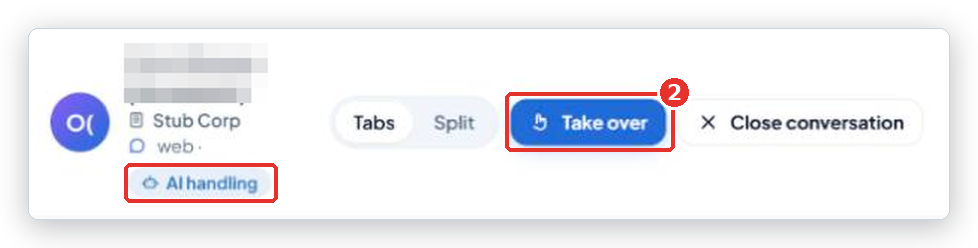
- In the header of the conversation, click Take over.
- The state badge changes to You took over, the row moves to the You took over folder, and a message box appears at the bottom that says Message
… . The bot stops answering this customer.
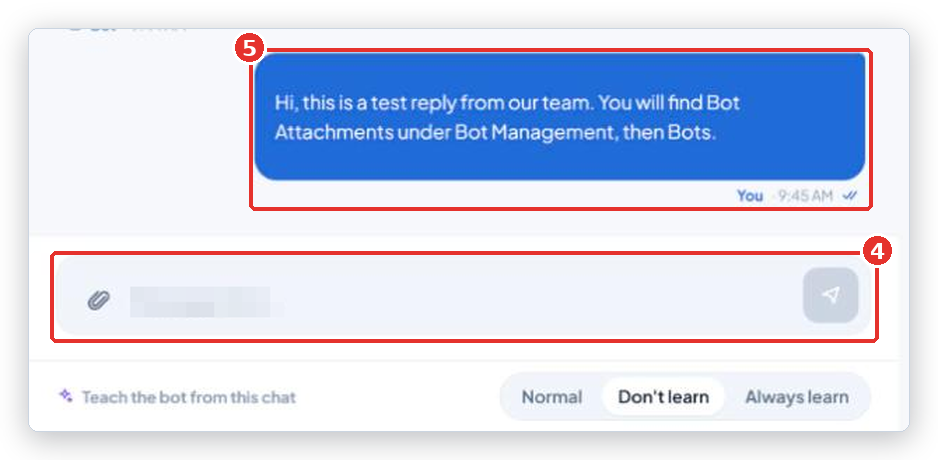
- Type your reply in the box and press Enter to send. Press Shift+Enter for a new line without sending.
- Your message appears on the right, marked You, with a small double tick. If the customer’s Channel reports that the message did not arrive, the tick is replaced by Not delivered.
There is no “are you sure?” box on Take over. It works the moment you click it.
Sending a file to the customer
If your organization has turned on file sending, a paperclip (Attach file) sits next to the message box. Click it and pick up to 5 files, or paste an image from your clipboard straight into the box. The files upload at once and appear as chips above the box; the small x on a chip removes it. Then type your message (or leave it empty) and press Enter.
No paperclip? Then file sending is off for your organization. Ask your BotableX administrator; the setting lives in the Staff Portal.
The paperclip is never shown in the Bot consultation panel. Files go to customers, not to the bot.
Handing the conversation back to the bot
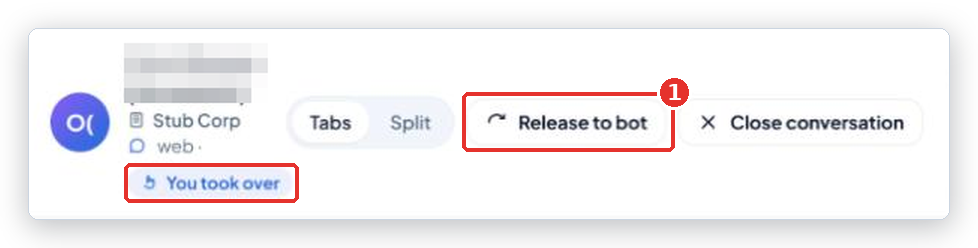
- When the customer is sorted but the conversation should stay open, click Release to bot in the header. It replaces Take over while you are in charge.
- The state goes back to AI handling. The bot answers the customer’s next message. The message box disappears, because the bot is talking now.
Closing a conversation
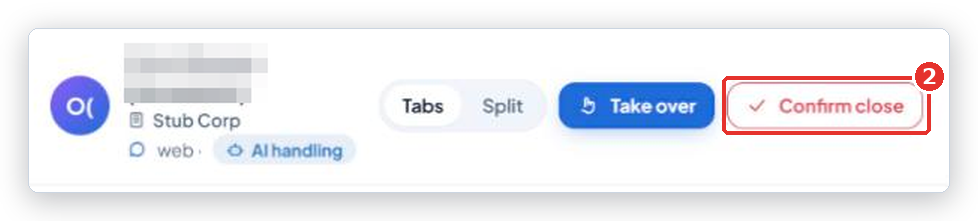
- In the header, click Close conversation.
- The same button turns red and now reads Confirm close. Click it again within 4 seconds. If you wait longer, it goes back to normal and nothing happens.
- The state becomes Closed and the row moves to the Closed folder. If the customer writes again, a new conversation starts.
What the buttons mean, side by side
| Button | What it does |
|---|---|
| Take over | Shown whenever you are not already in charge. You answer; the bot stops. |
| Release to bot | Shown while you are in charge. The bot answers again; the conversation stays open. |
| Let bot continue | Shown only while the bot is asking for help. Tells the bot to carry on without your advice. See “How to help the bot when it asks for advice”. |
| Close conversation | Shown whenever the conversation is open. Ends it; needs a second click. |
Common problems
| Problem | What to do |
|---|---|
| Action failed - try again | The console could not reach the server. Check the top bar says Live, then click again. The banner goes away by itself after a few seconds. |
| Not connected to the agent hub. Your message was not sent… | Wait for the top bar to say Live. Your text stays in the box; press Enter again. |
| I do not see a message box | You have not taken over yet. Click Take over. The box only appears while a person is in charge. In Tabs layout it can sit below the bottom of the window; scroll down, or switch to Split. |
| I do not see Take over at all | The badge Assigned to another agent means a teammate owns this conversation. Ask them, or wait for them to finish. |
| File too large. Maximum size is … MB. or File type not allowed. | Pick a smaller file or a common type. The limit is set by your administrator and shown in the message. |
| Attachments are not enabled for this tenant… | File sending is off for your organization. Send the message without files, or ask your administrator to turn it on. |
| Not delivered under my message | The Channel rejected the message, for example an email address that bounces. Try another way to reach the customer. |
Tip from the BotableX team. Take over only when a person really has to answer. While you are in charge the customer waits for you, not for the bot, and nothing is answered until you type. If the bot only needs a hint, use the Bot consultation panel instead.