Channels
How to create a WhatsApp Channel
A WhatsApp Channel connects your own WhatsApp Business number so customers can message you there and the bot can answer.
Updated October 4, 2026. Applies to the BotableX Staff Portal. For tenant admins.
A WhatsApp Channel connects your own WhatsApp Business number so customers can message you there and the bot can answer.
This article covers what you need from 360Dialog, how to create the Channel, and the one step people always miss: Provision.
Before you start
- You need the Bots permission (
bots.manage). - You need a WhatsApp Business number set up at 360Dialog.
- From the 360Dialog hub you need the D360 API Key for that number, and the Phone Number ID (Meta).
- You need the number itself in international format, starting with
+and the country code, for example+972501234567.
Important. Once this Channel is connected and has an active Bot Attachment, real WhatsApp messages go to real people from your business number. Test with your own phone first.
So how do you create a WhatsApp Channel?
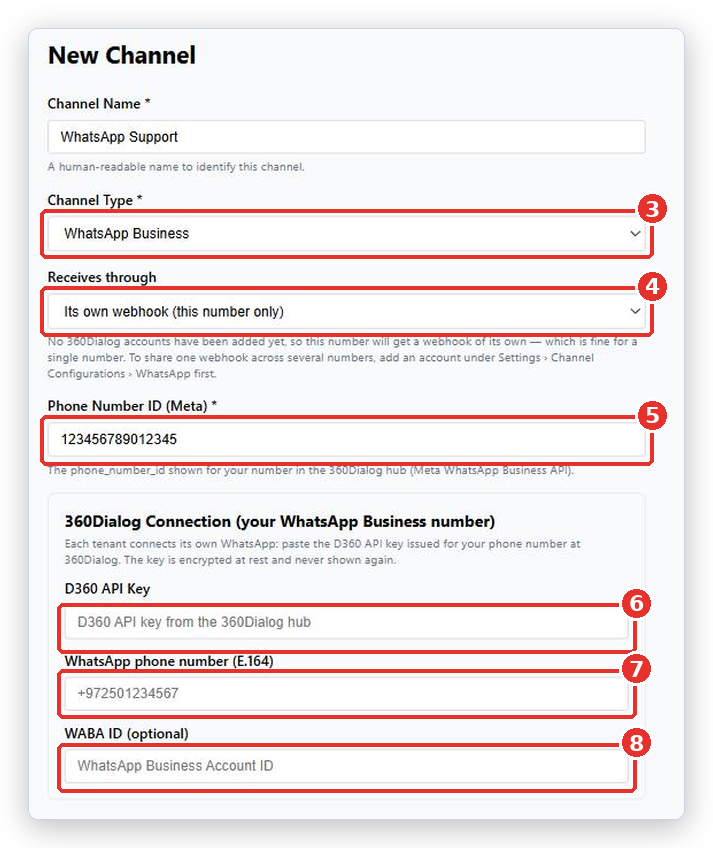
- In the menu on the left, open Bot Management, click Bots, pick the Channels tab, and click + New Channel.
- In Channel Name, type something like
WhatsApp Support. - In Channel Type, choose WhatsApp Business.
- Under Receives through, leave Its own webhook (this number only) if this is your only number. If you already added a 360Dialog account under Settings → Channel Configurations and want several numbers to share one webhook, pick that account instead.
- In Phone Number ID (Meta), paste the
phone_number_idshown for your number in the 360Dialog hub. Digits only. - In the 360Dialog Connection (your WhatsApp Business number) card, paste the D360 API Key.
- In WhatsApp phone number (E.164), type the number with a leading
+and the country code. - Fill in WABA ID (optional) if you have it.
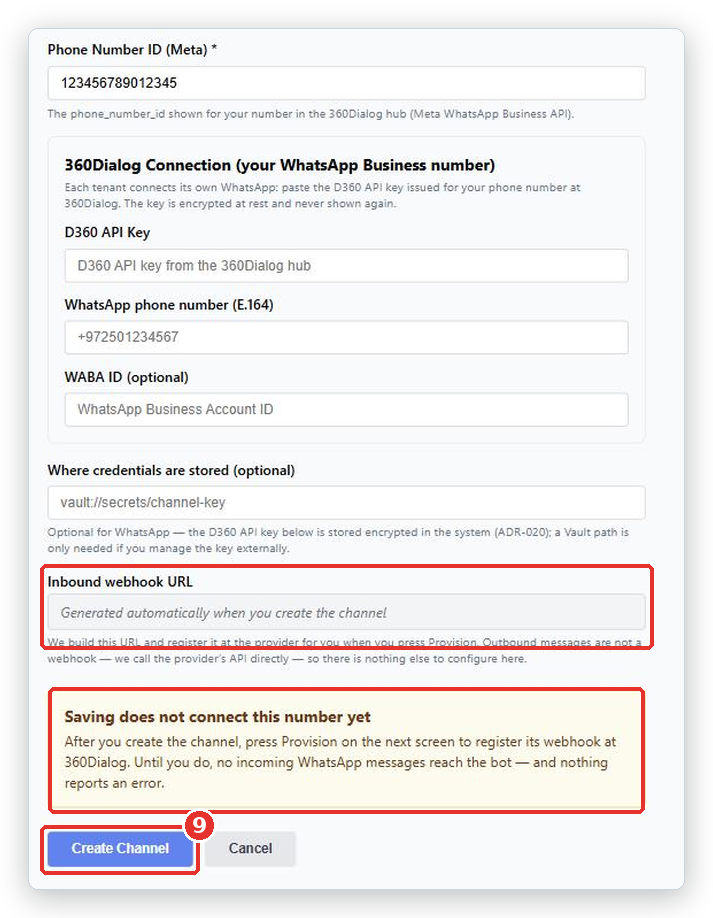
- Read the yellow box Saving does not connect this number yet, then click Create Channel.
The step people miss: Provision
Important. Saving does not connect the number. Until you press Provision, no incoming WhatsApp message reaches the bot, and nothing reports an error. The portal tells you this on the form too.
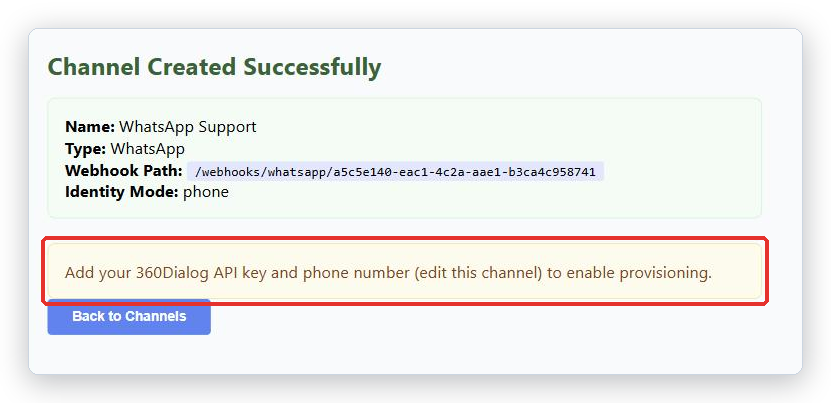
- After Create Channel you land on the Channel page. If you left the D360 API Key or the phone number empty, the page tells you so and shows no Provision button; click Edit channel, fill them in and save.
- Click Provision. BotableX registers its webhook at 360Dialog for your number.
- Click Check status and wait for it to report connected.
- Click Send a test WhatsApp message and send one to your own phone.
What happens next
Your D360 API Key is stored encrypted and never shown again. If you need to change it, paste a new one. Create an Agent and an active Bot Attachment, then message your business number from your own phone and see what comes back.
Common problems
| Problem | What to do |
|---|---|
| Enter the number in international E.164 format - a leading + and country code, e.g. +972501234567. | Add the + and the country code. No spaces, no dashes, no brackets. |
| D360 API key and phone number are required together. | You filled in one and not the other. Fill both. |
| Expected a numeric id (digits only). | The Phone Number ID must be digits only. Careful: a WABA ID is digits too, so a valid-looking id can still be the wrong one. Copy it from the phone number’s own page in the 360Dialog hub. |
| Add your 360Dialog API key and phone number (edit this channel) to enable provisioning. | You saved without the key or the number. Click Edit channel, fill both in, save, then press Provision. |
| Nothing arrives from WhatsApp | You almost certainly have not pressed Provision. Open the Channel and press it, then Check status. |
| I have several numbers and only one works | Add a 360Dialog account under Settings → Channel Configurations → WhatsApp first, then set Receives through to that account on each number so they share one webhook. |
| The bot replies but sends no image or file | Sending files on WhatsApp is switched off by default. Ask your BotableX administrator to turn on outbound attachments for WhatsApp. |
Tip from the BotableX team. Before you switch the Phone Number ID and the API key over from your old provider, write down the 360Dialog page you copied each value from. When something does not connect, it is nearly always a value copied from the wrong page.