Channels
How to connect a Microsoft 365 mailbox
Microsoft 365 mailboxes need their own way in. Microsoft turned off password sign-in for mailboxes in 2022, so a normal IMAP and SMTP setup will not send.
Updated October 4, 2026. Applies to the BotableX Staff Portal. For tenant admins.
Microsoft 365 mailboxes need their own way in. Microsoft turned off password sign-in for mailboxes in 2022, so a normal IMAP and SMTP setup will not send.
This article shows the supported way: one Microsoft sign-in that covers both reading and sending.
Before you start
- You need the Bots permission (
bots.manage). - You need the mailbox address, for example
support@yourcompany.com. - Someone who can sign in to that mailbox must be with you when you press the connect button. A Microsoft sign-in window opens.
- Microsoft sign-in has to be set up on your BotableX deployment first. If it is not, you will see a message saying so; ask your BotableX administrator.
Important. Connecting a mailbox means BotableX reads every message in it, and may reply to strangers from that address. Never connect a named person’s private mailbox. Use a shared support mailbox.
So how do you connect a Microsoft 365 mailbox?
- In the menu on the left, open Bot Management, click Bots, pick the Channels tab, and click + New Channel.
- Give the Channel a Channel Name and set Channel Type to Email.
- Choose Who sends the reply. See the Email Channel article if you are not sure.
- In Email Provider, choose My own mailbox (IMAP + SMTP - no provider account).
- In Inbound Email Address, type the mailbox address.
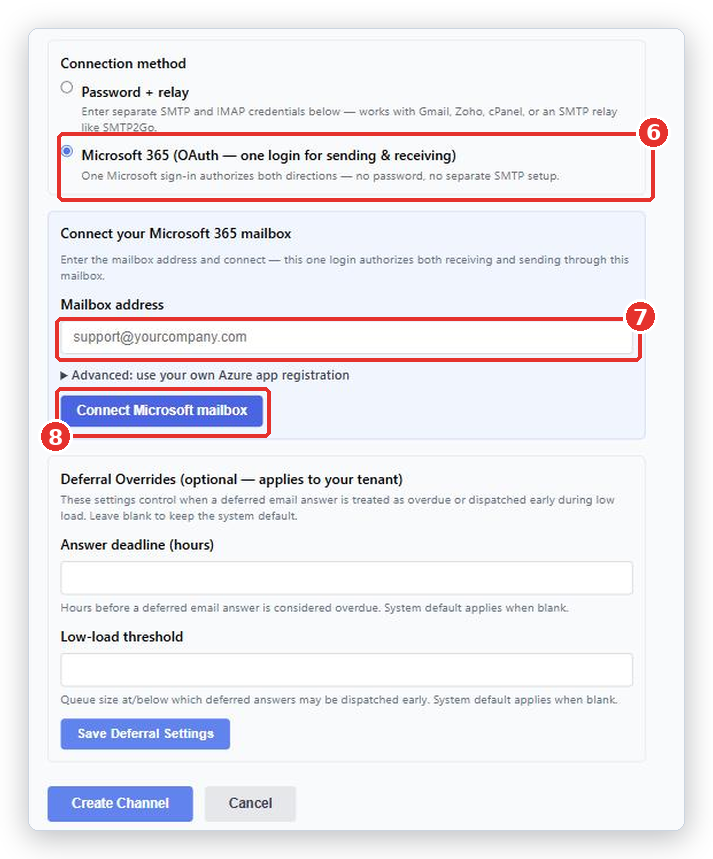
- Under Connection method, choose Microsoft 365 (OAuth - one login for sending & receiving). The two password cards disappear and a Connect your Microsoft 365 mailbox card appears instead.
- In Mailbox address, type the mailbox address again.
- Click Connect Microsoft mailbox. A Microsoft sign-in window opens. Sign in as the mailbox and accept the permissions.
- Back in BotableX, click Create Channel.
- On the Channel page, send yourself a test email from Verify outbound email and check it arrives.
The advanced option, and when to ignore it
Under Advanced: use your own Azure app registration there are two extra choices. Most people should not open this.
- How should we connect to the mailbox? Leave it on Microsoft Graph (recommended). This works on a standard Microsoft 365 tenant with no extra setup. The other option, IMAP + SMTP (legacy), needs your administrator to switch Authenticated SMTP back on, and it is off by default.
- How should we sign in to Microsoft? Leave it on Connect with Microsoft (recommended - one click). The other option asks for your own Directory (tenant) ID, Application (client) ID and Client secret, and all three are required together.
If your administrator uses your own app registration
Whoever owns your Azure app registration must add these permissions under Microsoft Graph, not under Office 365 Exchange Online:
Mail.ReadWrite.SharedMail.Send.Shared
Office 365 Exchange Online publishes permissions with the same names. Adding those instead does nothing at all, silently. This catches people out often, so check which one was picked.
What happens next
Create an Agent and a Bot Attachment for this Channel, then send a test email to the mailbox from an address you control. The reply may be waiting in the Agent Console for review; see the article on reviewing email replies.
Common problems
| Problem | What to do |
|---|---|
| Microsoft sign-in is not set up on this deployment yet. An administrator must configure it first. | Ask your BotableX administrator to set up Microsoft sign-in. You cannot do this yourself. |
| Could not start Microsoft sign-in. | Try again. If it keeps happening, check that pop-up windows are allowed in your browser. |
| Directory (tenant) ID, Application (client) ID and client secret are all required for Microsoft 365 sign-in. | You opened the advanced section and filled in only some of the three. Fill all three, or go back to Connect with Microsoft. |
Sending fails with 535 5.7.139 |
You are on the legacy IMAP + SMTP option and Microsoft has Authenticated SMTP switched off for that mailbox. Switch to Microsoft Graph (recommended), or have your administrator turn Authenticated SMTP on. |
| The bot answers old, already-handled emails | Ask BotableX support to check the inbound high-water mark for this mailbox. A person simply opening a message can make it look new. |
| The sign-in worked but nothing arrives | Reading Microsoft 365 mailboxes is switched on by BotableX per deployment. Ask your BotableX administrator to confirm it is on for yours. |
Tip from the BotableX team. Do the Microsoft sign-in with the shared support mailbox account itself, not with your own personal Microsoft account. The bot will send as whoever signed in.