Agents and Bots
What an Agent is, and how to create one
An Agent is the bot's settings: who it is, how it should behave, which AI model it uses, what it must never do, and which Knowledge Banks it may read.
Updated October 4, 2026. Applies to the BotableX Staff Portal. For tenant admins.
An Agent is the bot’s settings: who it is, how it should behave, which AI model it uses, what it must never do, and which Knowledge Banks it may read.
An Agent is not a person, and it does not answer anything until you attach it to a Channel. This article shows how to create one and what each field is for.
Before you start
- You need the Bots permission (
bots.manage). - Create at least one Knowledge Bank first and put some content in it. You can connect it later, but an Agent with no Knowledge Bank can only answer from its own instructions.
- Have a short description of your business ready: who you are, what you sell, how you want to sound.
So how do you create an Agent?
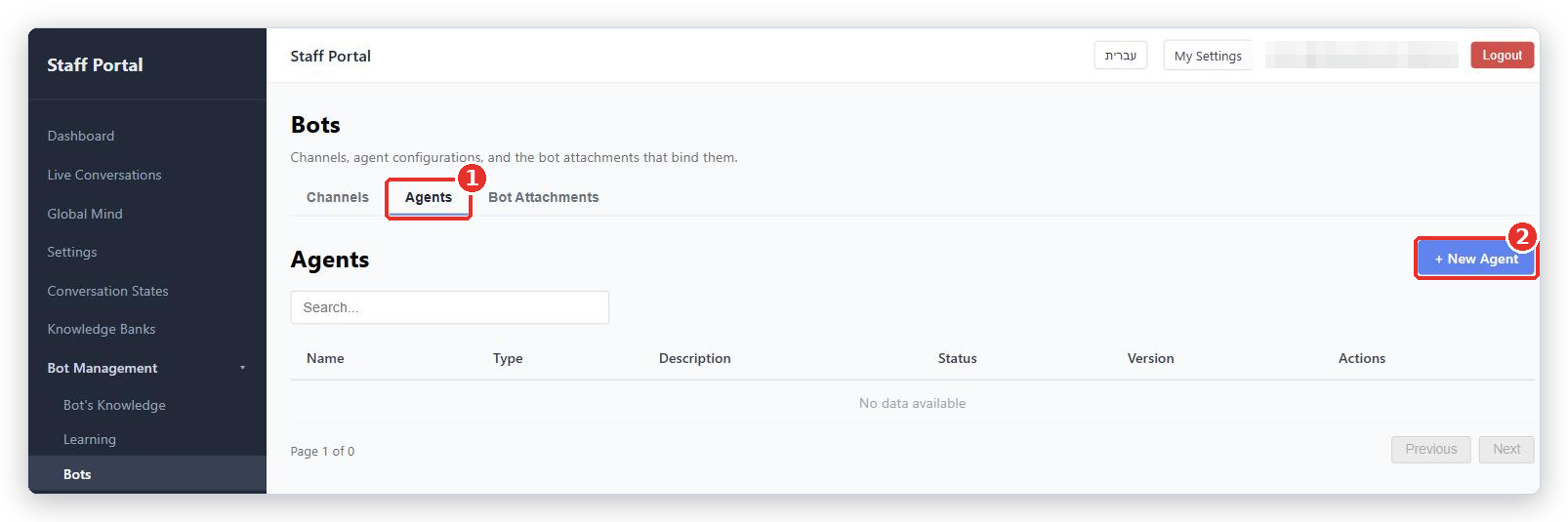
- In the menu on the left, open Bot Management, click Bots, and pick the Agents tab.
- Click + New Agent.
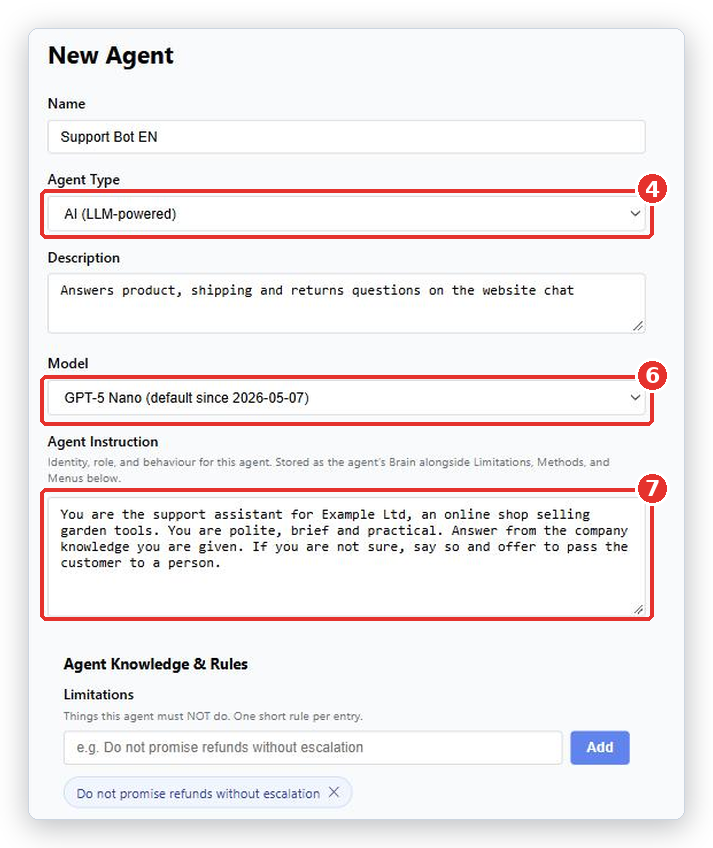
- In Name, type something you will recognize, such as
Support Bot EN. - In Agent Type, choose AI (LLM-powered). The form opens with Dummy (static response) selected, so you must change it. A Dummy agent always sends the same fixed sentence and is only for testing.
- In Description, write one line saying what this Agent is for.
- In Model, pick an AI model. If you are not sure, pick the one marked default.
- In Agent Instruction, write who the bot is and how it should behave. There is an example below.
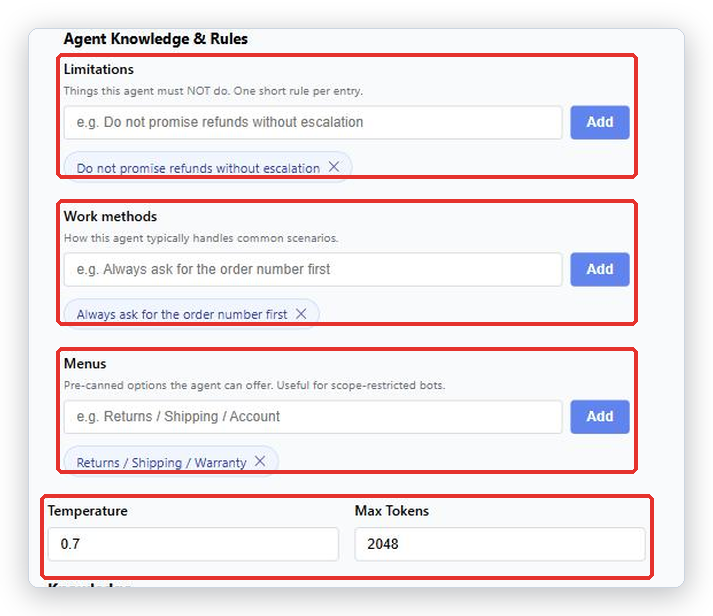
- Under Agent Knowledge & Rules, add short rules to Limitations, Work methods and Menus. Type one line, click Add, repeat. Each one is explained below.
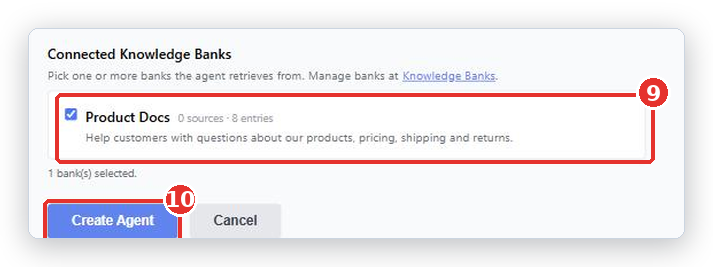
- Scroll to Connected Knowledge Banks and tick every bank this Agent may read. A line under the list tells you how many you picked.
- Click Create Agent.
What to write in Agent Instruction
This is the bot’s identity and role. Write it as if you were briefing a new member of staff on their first day. Keep it short and concrete.
For example: You are the support assistant for Example Ltd, an online shop selling garden tools. You are polite, brief and practical. Answer from the company knowledge you are given. If you are not sure, say so and offer to pass the customer to a person.
Do not paste your whole help center here. Facts belong in a Knowledge Bank, where they can be searched. This field is about behavior.
Limitations, Work methods and Menus
| Field | What to put in it |
|---|---|
| Limitations | Things this Agent must never do. For example Do not promise refunds without escalation. |
| Work methods | How it should handle common situations. For example Always ask for the order number first. |
| Menus | Ready-made choices it can offer the customer. For example Returns / Shipping / Warranty. |
One short line per entry. These are much more reliable than adding more words to Agent Instruction.
Model, Temperature and Max Tokens
- Model decides which AI model writes the answers. Different models cost different amounts and answer at different speeds.
- Temperature controls how varied the wording is.
0.7is the default and suits most support work. Lower means more predictable. Higher means more creative, which is rarely what you want in support. - Max Tokens is roughly how long an answer may be.
2048is the default and is plenty for a support reply.
The Knowledge section on the Agent form
Between the rules and Connected Knowledge Banks you will see a section called Knowledge, with Files and Web pages. Content you add there belongs to this Agent only and does not appear in any Knowledge Bank.
We recommend leaving it empty and using Knowledge Banks instead. In a bank you can read the Knowledge entries, fix them, and share the same content between several Agents.
Connecting Knowledge Banks
You can tick more than one bank. The Agent searches all of them together and uses whatever matches the question best. It does not choose one bank and stick to it.
If the list is empty, you have no Knowledge Banks yet. Create one first, then come back and edit the Agent.
A note about the two threshold settings
Further down you may see Response confidence threshold and How closely a piece of knowledge must match the question. Each has its own Save button and is marked (system-wide, all AI agents).
These are not per-Agent. Changing one changes it for every AI Agent in your account. Response confidence threshold decides how sure the bot must be before it answers directly instead of asking a person for help. The default is 80 per cent. Lower it and the bot answers more often but is more likely to be wrong. Raise it and it passes more conversations to people.
If you do not see these two settings, your role does not allow changing them. Ask your BotableX administrator.
What happens next
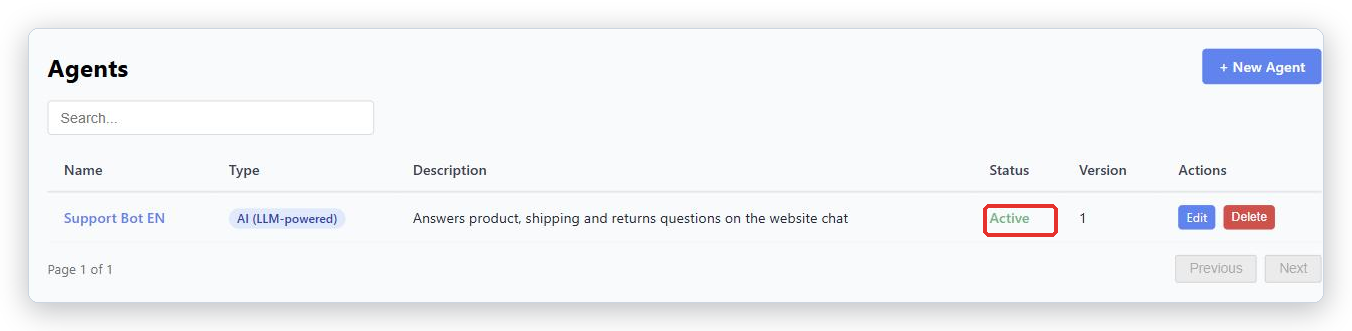
After you click Create Agent you see the Agents list. Your new Agent shows Status Active and Version 1.
Creating an Agent changes nothing for customers. Nothing answers until you create a Bot Attachment joining this Agent to a Channel, and make it active.
Common problems
| Problem | What to do |
|---|---|
| I only see Name, Agent Type, Description and Static Response | Agent Type is still Dummy (static response). Change it to AI (LLM-powered) and the rest of the form appears. |
| No banks defined yet for this tenant. Create one first. | You have no Knowledge Banks. Create one under Knowledge Banks, then edit this Agent. |
| Agent created, but the Brain section failed to save. | The Agent exists but Agent Instruction, Limitations, Work methods or Menus did not save. Open the Agent and save again. |
| The bot ignores my instructions | Move the rule into Limitations or Work methods as a single short line. A long Agent Instruction is easy for the model to skim past. |
| The bot answers but gets facts wrong | Facts come from Knowledge Banks, not from Agent Instruction. Check the right bank is ticked and that it actually contains the answer. |
| I cannot delete an Agent | Delete its Bot Attachments first. An Agent that is attached to a Channel is in use. |
Tip from the BotableX team. Write your Agent Instruction in five sentences or fewer, then put every “always” and “never” into Work methods and Limitations as separate lines. Short rules are followed. Long paragraphs are skimmed.