Knowledge Banks
How to create a Knowledge Bank
A Knowledge Bank is a folder of your own content that the bot reads to answer questions: your help pages, your price list, your policies, your manuals. Without one, the bot has nothing to answer from.
Updated October 4, 2026. Applies to the BotableX Staff Portal. For tenant admins.
A Knowledge Bank is a folder of your own content that the bot reads to answer questions: your help pages, your price list, your policies, your manuals. Without one, the bot has nothing to answer from.
This article explains what a bank is, how to create one, what the Purpose field is for, and how to decide how many banks you need.
Before you start
- You need the Knowledge permission (
knowledge.manage). - Have some content ready: a website address you want read, or files to upload.
What a Knowledge Bank is
Think of a Knowledge Bank as a filing cabinet. You put documents and web pages in it. BotableX cuts them into small pieces called Knowledge entries, so that when a customer asks a question, the bot can find the one paragraph that answers it instead of reading everything.
A Knowledge Bank holds facts. It is not the same as Bot’s Knowledge, which holds rules about how the bot should behave. Different screen, different job.
How many banks do I need?
Start with one. Split later, only when you have a reason.
- One bank for everything is fine for most businesses.
- Split by subject when different Agents should see different content. For example a
Sales FAQbank and aTechnical Supportbank. - Split by language if your content exists separately in each language.
- Do not split just to keep things tidy. An Agent can read several banks at once, but more banks means more places to keep up to date.
So how do you create a Knowledge Bank?
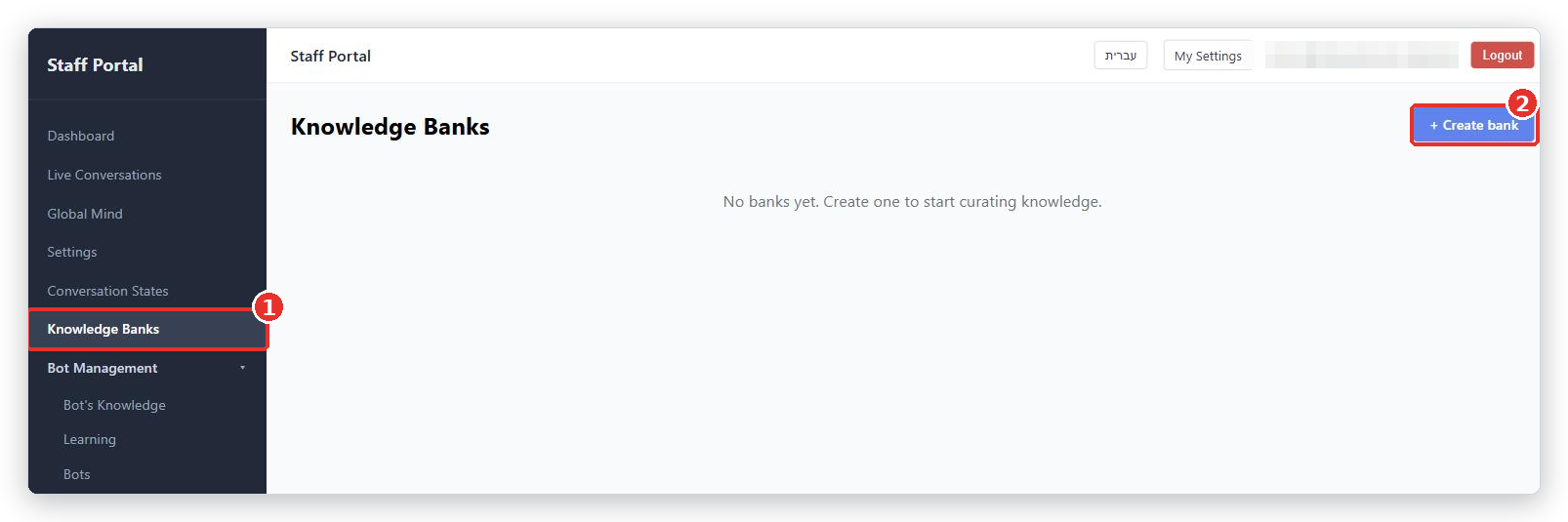
- In the menu on the left, click Knowledge Banks. It is a top-level entry, not inside Bot Management.
- Click + Create bank.
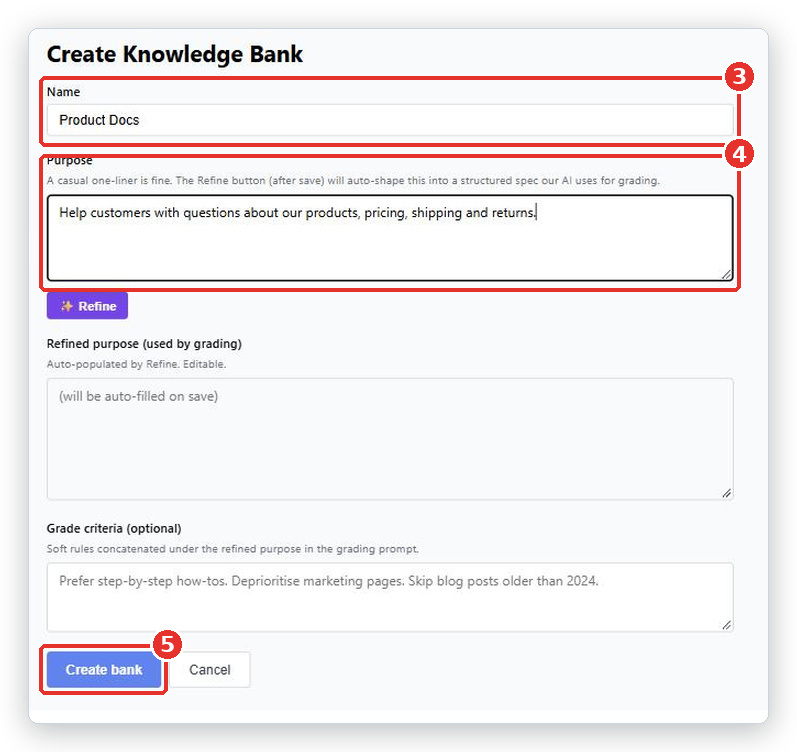
- In Name, type something clear, such as
Product DocsorTechnical Support. - In Purpose, describe in your own words what belongs in this bank. One casual sentence is fine, for example
Help customers with questions about our products, pricing, shipping and returns. - Leave Refined purpose and Grade criteria empty for now.
- Click Create bank.
What you see after you click Create bank
You land on the bank’s own page. The top shows the name, the Purpose, and four numbers: Sources, Knowledge entries, Linked agents and Updated. Under them are four tabs.
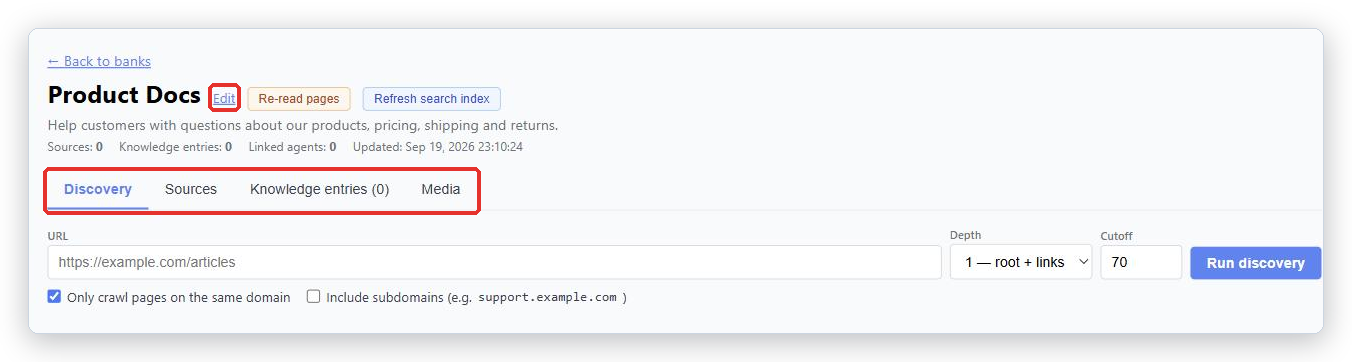
| Tab | What it is for |
|---|---|
| Discovery | Read your website. BotableX finds the pages and you choose which to keep. |
| Sources | Upload files, and see every file and web page that is in the bank with its status. |
| Knowledge entries | Read, fix and add the small pieces the bot actually searches. |
| Media | The images found in your content, and whether the bot may show them. |
Purpose, and the Refine button
Purpose matters more than it looks. BotableX uses it to decide whether a web page it finds is worth keeping when it reads your website, and to describe images. It is not used when the bot searches for an answer, so do not try to write keywords into it.
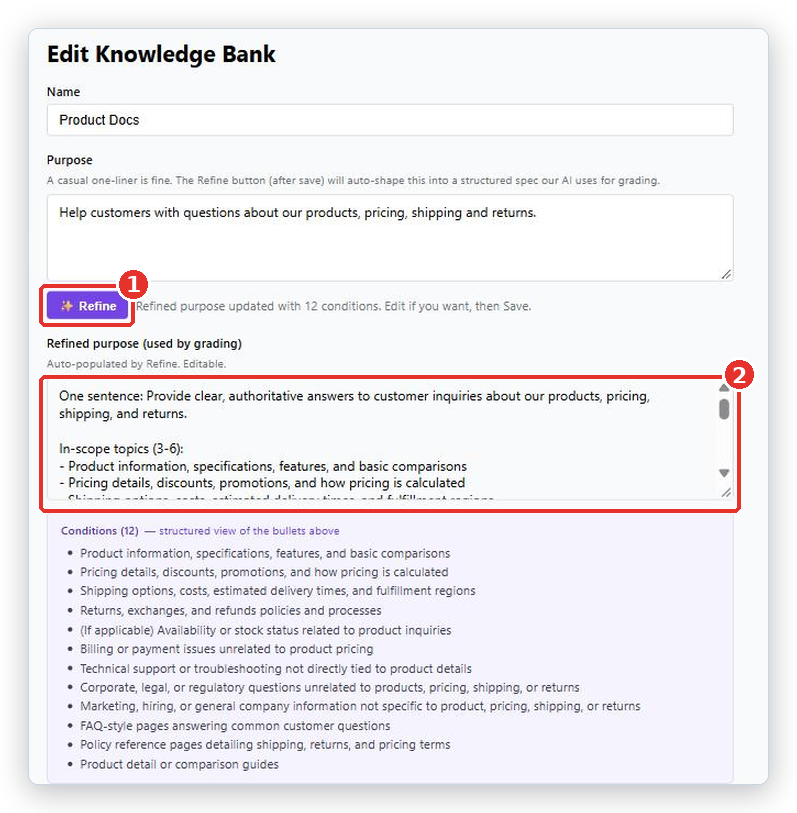
- On the bank page, click Edit next to the bank name.
- Click ✨ Refine. After a few seconds BotableX rewrites your one-liner into a fuller description and puts it in Refined purpose (used by grading). It also lists the topics it found as Conditions.
- Read it, change anything you disagree with, then click Save.
Refine only works on a bank that has been saved. On a brand new bank you will see: Save the bank first, then click Refine to auto-shape the purpose.
Grade criteria (optional) is for extra soft rules, for example Ignore press releases and job adverts.
Reading the Knowledge Banks list
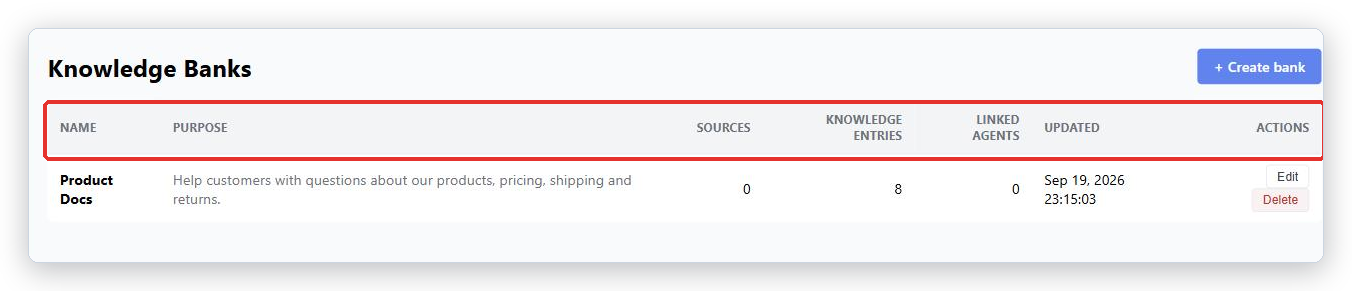
- Name and Purpose are what you typed.
- Sources is how many files and web pages you have added. See the note below.
- Knowledge entries is how many searchable pieces those became.
- Linked agents is how many Agents are allowed to read this bank.
- Updated is when it last changed.
A bank with 0 Knowledge entries cannot answer anything, however many Sources it shows. If entries stay at zero, see the articles on adding files and web pages.
Today the Sources number only counts web pages found by Discovery. Uploaded files are not counted, so a bank with only files shows Sources 0 even though Knowledge entries is above zero. The Sources tab inside the bank always shows the full list.
What happens next
Add content to the bank, then connect it to an Agent. Go to Bot Management → Bots → Agents, open your Agent, and tick the bank under Connected Knowledge Banks. Until you do that, the Agent cannot see it.
Common problems
| Problem | What to do |
|---|---|
| Save the bank first, then click Refine to auto-shape the purpose. | You pressed ✨ Refine on a bank that has not been created yet. Click Create bank, then Edit it and press Refine. |
| Cannot delete “…” - N agent(s) still link to it. | Open each Agent listed and untick this bank under Connected Knowledge Banks, then delete the bank. |
Sources shows 0 but I uploaded files |
A known display issue. Files are not counted in that number yet. Open the bank and look at the Sources tab; your files are there. |
| The bank shows Sources but 0 Knowledge entries | The content is still being processed, or it failed. Open the bank and look at the Status on the Sources tab. |
| The bot does not use my new bank | Check the bank is ticked under Connected Knowledge Banks on the Agent. A bank nobody is linked to is never read. |
Tip from the BotableX team. Write the Purpose as if you were telling a new employee which folder to put things in. “Everything a customer might ask about our products, prices, delivery and returns” is a good Purpose. A list of keywords is not.