Knowledge Banks
How to work with Knowledge entries
A Knowledge entry is one small piece of an answer. It is what the bot actually searches and reads. Your documents and web pages are cut into these automatically.
Updated October 4, 2026. Applies to the BotableX Staff Portal. For tenant admins.
A Knowledge entry is one small piece of an answer. It is what the bot actually searches and reads. Your documents and web pages are cut into these automatically.
This article shows how to read your entries, fix a bad one, and write a new one by hand when the bot keeps getting one thing wrong.
Before you start
- You need the Knowledge permission (
knowledge.manage). - You need a Knowledge Bank with at least one file or web page already added.
Why entries matter more than documents
The bot never reads your whole document. It searches for the few entries that best match the customer’s question and answers from those. So the quality of your entries is the quality of your bot.
Reading a handful of entries is the single most useful thing you can do when the bot gives a poor answer.
So how do you look at your entries?
- In the menu on the left, click Knowledge Banks and open your bank.
- Click the Knowledge entries tab. The tab shows how many there are in brackets.
- Each entry is one card. To change one, click Edit on its card.
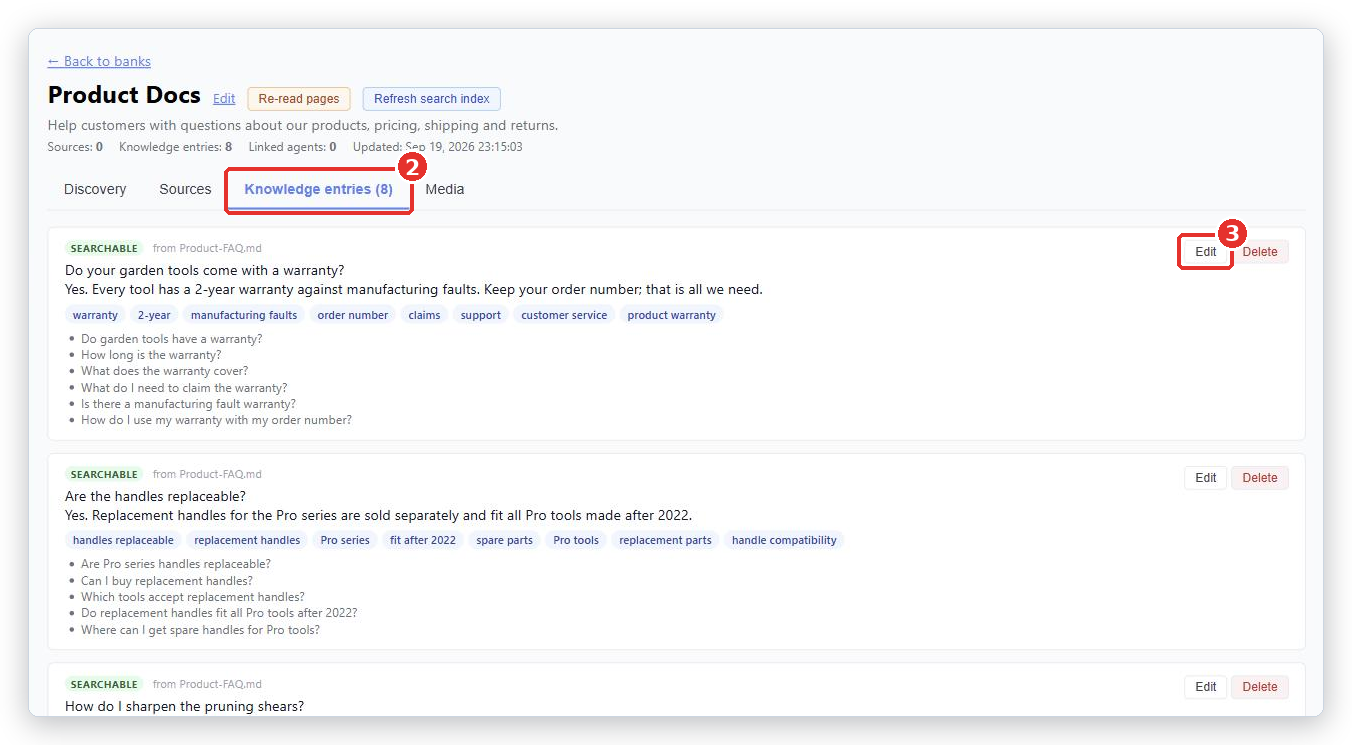
What is on an entry card
- A badge: Searchable once the bot can use it, Processing while it is being prepared, or Manually added if you wrote it yourself.
- from
tells you where it came from. - The answer text itself.
- A row of blue search terms: extra words that lead the customer to this entry.
- A list of phrasings: real questions a customer might type that should find this entry.
Fixing an entry
Click Edit on the card. Three boxes open.
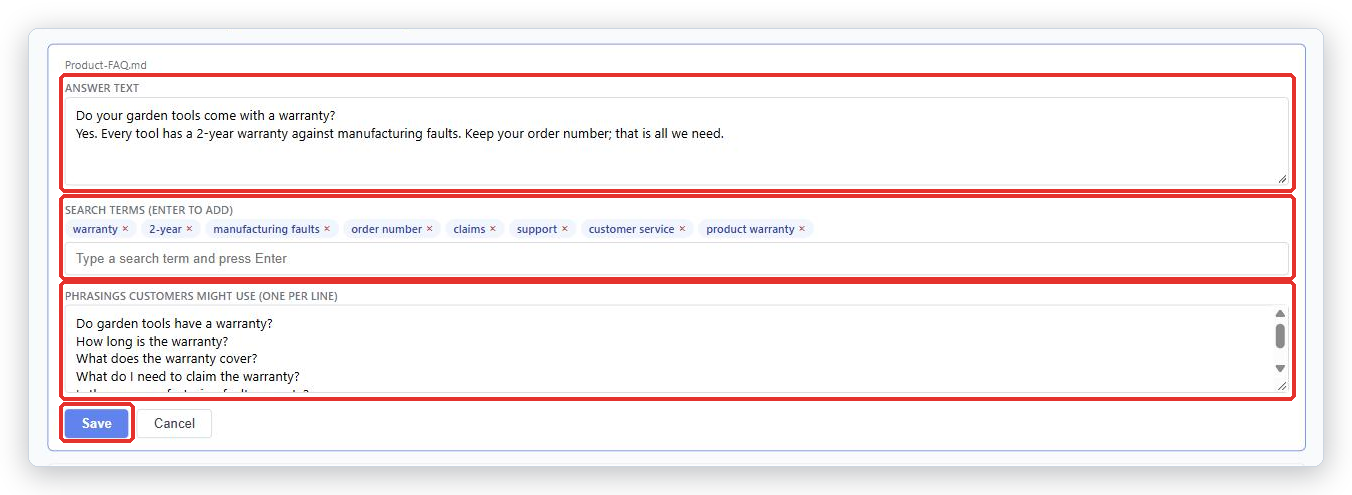
| Box | What it is for |
|---|---|
| Answer text | The actual content the bot reads and answers from. Fix wrong facts here. |
| Search terms (Enter to add) | Extra words that should lead the customer to this entry. Type a word and press Enter to add it. Click the small × on a word to remove it. |
| Phrasings customers might use (one per line) | Real questions a customer might type. This is the most useful box of the three. |
Click Save when you are done, or Cancel to leave it as it was.
Writing an entry by hand
This is the fastest fix when the bot keeps getting one specific question wrong.
- On the Knowledge entries tab, scroll to the bottom and click + Add entry.
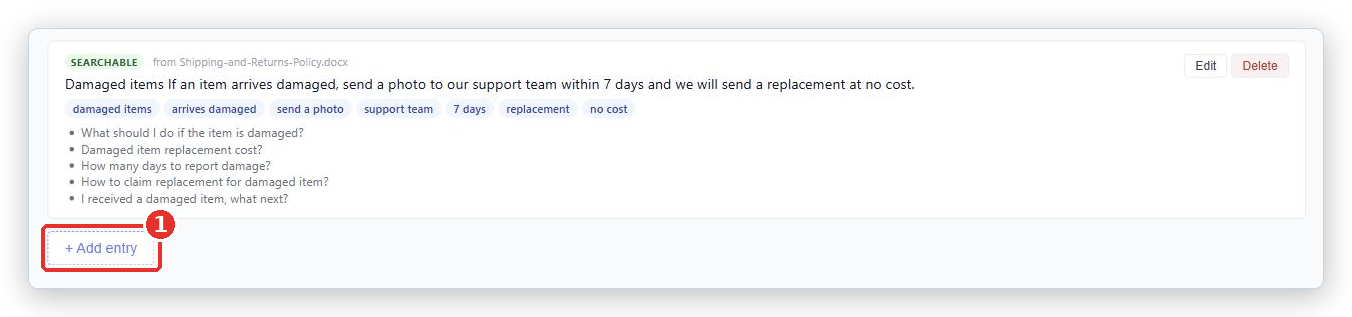
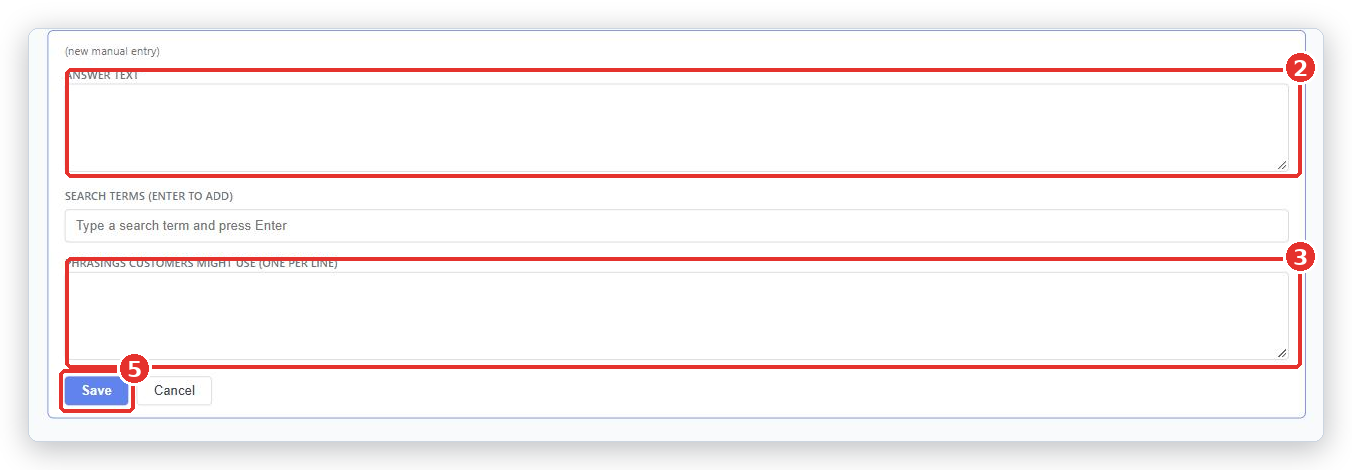
- In Answer text, write the answer exactly as you want the bot to know it. Write facts, not a script. The bot puts it into its own words.
- In Phrasings customers might use, type several real ways customers ask this, one per line. Include the wrong wording and the misspellings they actually use.
- Add a few Search terms: type a word, press Enter.
- Click Save.
Good entries and bad entries
- One idea per entry. An entry covering five topics matches none of them well.
- Write the answer plainly. Skip introductions such as “In this article we will explain”.
- Include the words customers use, not only your internal words. If customers say “delivery” and you say “fulfillment”, put both in.
- Keep prices, opening hours and policies in their own entries, so they are easy to find and easy to update.
- If an entry is wrong, fixing the entry is quicker than re-uploading the document. But remember that re-reading a web page later replaces the entries made from that page.
Common problems
| Problem | What to do |
|---|---|
| No entries yet. Use the Discovery tab to ingest URLs, or click “+ Add entry” to author one manually. | The bank is empty. Add files or run a discovery first. |
| An entry is wrong | Click Edit, fix the Answer text, and Save. If it came from a web page, fix the page too, or the next re-read will bring the mistake back. |
| The bot never finds the right entry | Add the customer’s actual wording to Phrasings customers might use. This helps more than anything else. |
| Entries look like chopped-up menus | The source page was mostly navigation. Untick that page on the Sources tab and use a better one. |
| My manual entry disappeared | Manual entries are not removed by a re-read. Check you are looking at the right bank, and check it was not deleted together with a selected group. |
Tip from the BotableX team. When a customer asks something the bot got wrong, copy their exact sentence into Phrasings customers might use on the right entry. Real customer wording beats anything you would invent.